Freeze column/row
You can freeze the column and row at any position at once. The following example is based on a model of type EPC.
In an open model, activate the Model tab bar.
Click
 Freeze/Unfreeze > Freeze column/row. Position lines are displayed in the modeling area.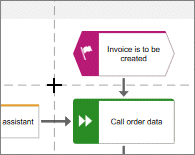
Click the position where the row and column should freeze.
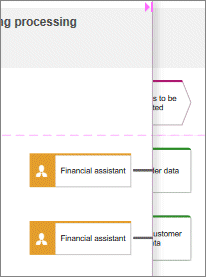
If you scroll to the right, a separator is displayed between the frozen column and the scroll area on the right side.
If you scroll down, a separator is displayed between the frozen row and the scroll area below.
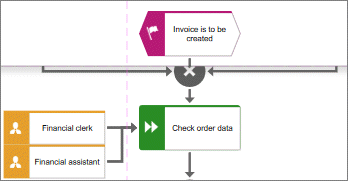
If you scroll to the right and down, both separators are displayed.
You have frozen a column and a row and moved the scrollable area.
You can show frozen columns/rows and identify the frozen column and/or row even when none of the scrollable areas in the model have moved.
In an open model, activate the Model tab bar.
Freeze a column and/or row in the non-lane model, for example, in a model of type EPC.
Click
Freeze/Unfreeze > Show frozen column/row.The frozen column/row is indicated by an arrow pointing to the scrollable area, even when you have not moved any of the scrollable areas in the model.
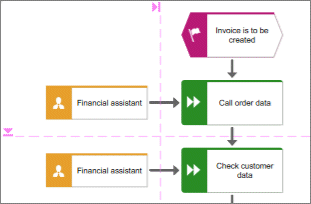
You have enabled the frozen column and row display.
In an open model, click
Freeze/Unfreeze > Unfreeze columns/rows.