Editing object with Properties tab
On the Properties tab, you can create a new connection from the selected object to a new or to existing objects, display object occurrences in the model, and delete occurrences from the model.
This example shows how to create a new connection in a process model of type EPC using the Properties tab.
Open the model.
Select an object in the model.
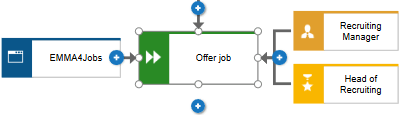
Display the Properties tab of the
 Details bar if it is not already open.
Click RA(S)CI. The category is opened.
Move the mouse pointer over Informed. The
 Create button is displayed.
Click
Create.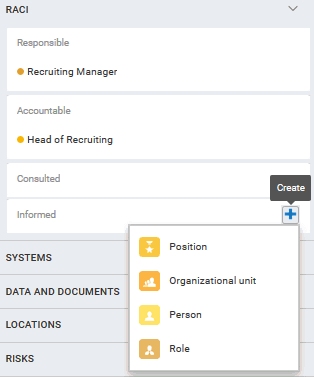
Click the relevant object. The object is inserted and you can enter a name.
Enter a name.
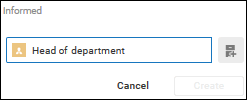
Click Create.
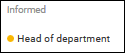
The connection between the selected and the new object is created.
Open the model.
Select an object in the model.
Display the Properties tab of the
Details bar if it is not already open.Click RA(S)CI. The category is opened.
Move the mouse pointer over Informed. The
Create button is displayed.Click
Create.Click the relevant object. The object is inserted and you can enter a name. If you enter a term that matches object names in the database, the objects are offered for reuse.
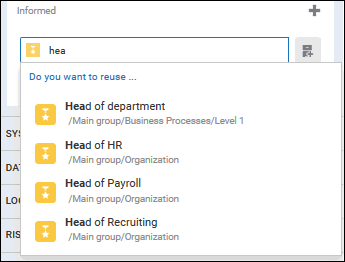
Click the object you want to reuse.
The connection between the selected and the existing object is created.
Open the model.
Select an object in the model.
Display the Properties tab of the
Details bar if it is not already open.Click RA(S)CI. The category is opened.
Move the mouse pointer over the object connected to the selected object, in this example, over the object Head of department under Informed. The
 Display object in model icon is displayed.
Click
Display object in model.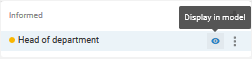
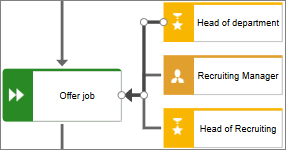
An object occurrence is created in the model and the connection between the selected object and the object occurrence is selected.
Open the model.
Select an object in the model.
Display the Properties tab of the
Details bar if it is not already open.Click RA(S)CI. The category is opened.
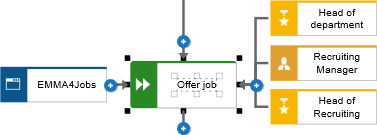
Move the mouse pointer over the object connected to the selected object, in this example, over the object Head of department under Informed. The
 Delete button is displayed.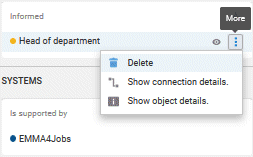
Click
 Delete.
The connection and the occurrence of the object are removed from the model.